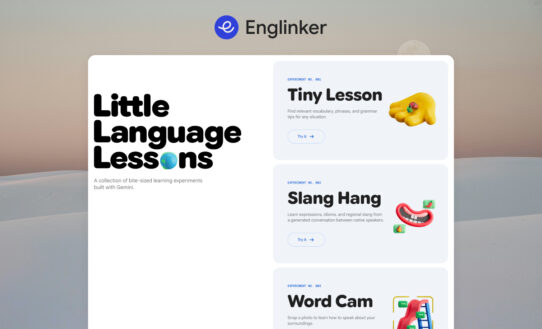


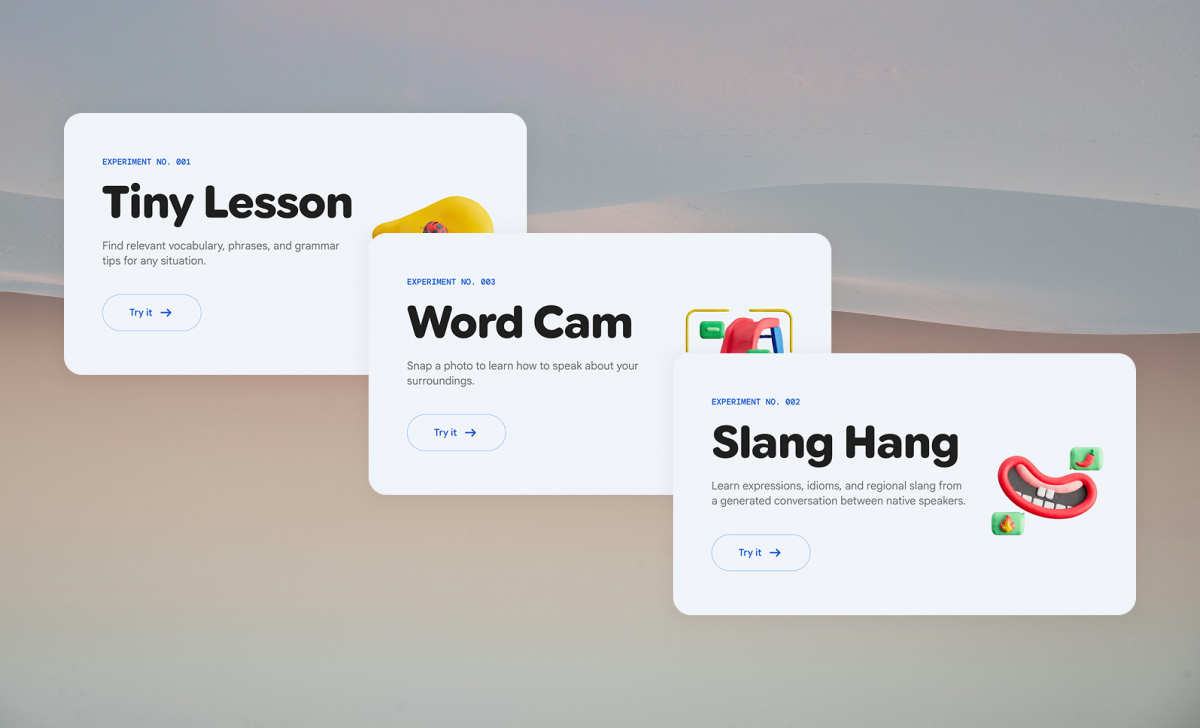

After exploring what Little Language Lessons is in Part 1, it’s time to put it into practice. In this post, we’ll guide you step by step on how to use its three powerful tools:Tiny Lesson, Slang Hang, and Word Cam.
Read part 1: https://englinker.com/little-language-lessons-guide-part-1
Read part 3: Updating…
Tiny Lesson – Learn English Vocabulary, Phrases, and Grammar
Step 1: Open the Tiny Lesson tool
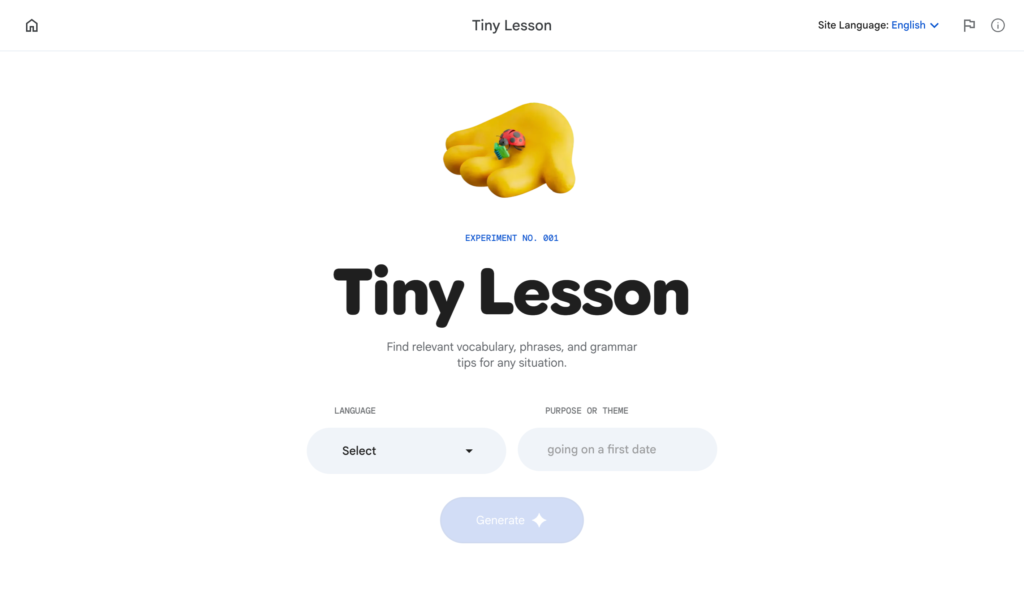
On the Little Language Lessons homepage, click the “Try it” button on the Tiny Lesson card.
You can also access the tool directly using this link:
https://labs.google/lll/en/experiments/tiny-lesson
Once you open the Tiny Lesson tool, you will see two main input fields. These fields allow you to customize the lesson based on your learning goals, preferred topic, and real-life situations you want to practice.
This helps you learn English vocabulary, useful phrases, and grammar that are directly relevant to your needs.
Step 2: Choose Your English Variety & Topic
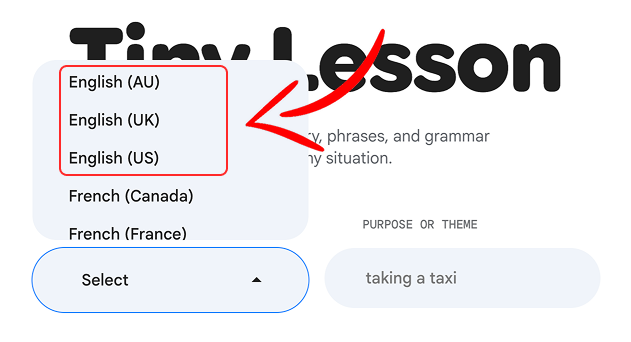
Next, choose the type of English you want to learn. On the left side, select your preferred English variety. This allows you to learn English with the accent and cultural context of the country you choose, such as English (AU), English (UK), or English (US). For most learners, English (US) and English (UK) are the most common choices.
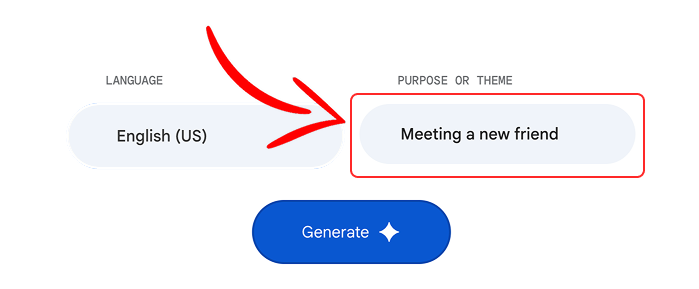
On the right side, you will find the Purpose or Theme field. This is where you tell Tiny Lesson what real-life situation you want to practice in English.
Instead of entering a single word, try describing a specific everyday context. This helps the AI generate more useful vocabulary, phrases, and grammar for your learning goals. For example, you can enter situations such as:
- Meeting a new friend
- Ordering coffee at a café
- Introducing yourself at work
- Asking for directions
- Going to a job interview
The more specific your situation is, the more practical and relevant the lesson will be.
Once you have selected your preferred English variety and topic, click the Generate button to create your lesson.
Step 4: Review and Practice the Generated Lesson
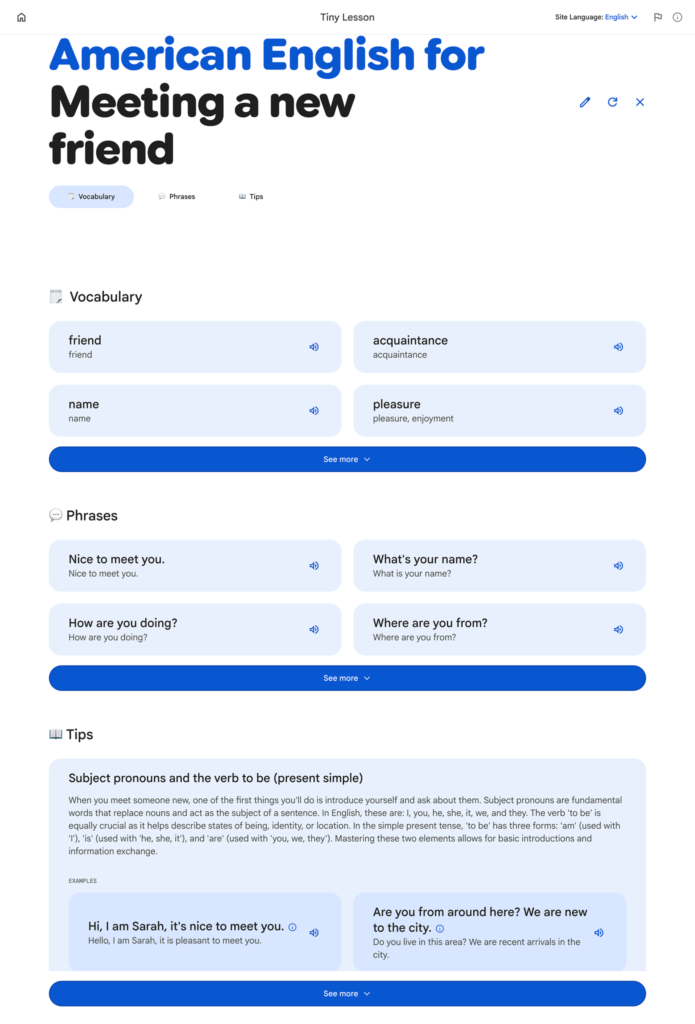
Once Tiny Lesson generates your lesson, take a few minutes to review the content carefully. Pay close attention to:
- New vocabulary
- Useful phrases
- Example sentences
Don’t just read silently – try reading the words and phrases out loud to practice your pronunciation and speaking confidence.
To get the best results from Tiny Lesson, avoid choosing random or overly general topics. Instead, focus on situations that are:
- Part of your daily life
- Connected to your learning goals
- Real situations you may actually experience
For example, choose topics like introducing yourself at work, ordering food, or asking for directions. This makes your English practice more practical, relevant, and easier to remember.
Slang Hang – Learn English Expressions and Idioms Through Casual Conversations
Step 1: Open Slang Hang and Choose Your English Variety
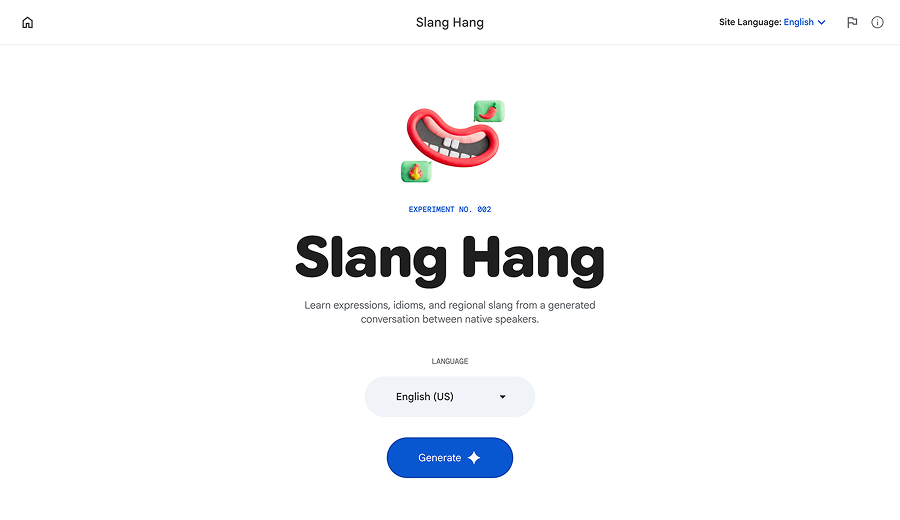
On the Little Language Lessons homepage, click the “Try it” button on the Slang Hang card.
You can also access the tool directly using this link:
https://labs.google/lll/en/experiments/slang-hang
Just like in Tiny Lesson, you can select your preferred English variety. This allows you to learn slang, casual expressions, and cultural context from the country you choose. You will see three options: English (AU), English (AK), English (US)
Once you have selected your preferred option, click the Generate button to create the conversation.
Step 2: Review and Practice the Generated Conversation
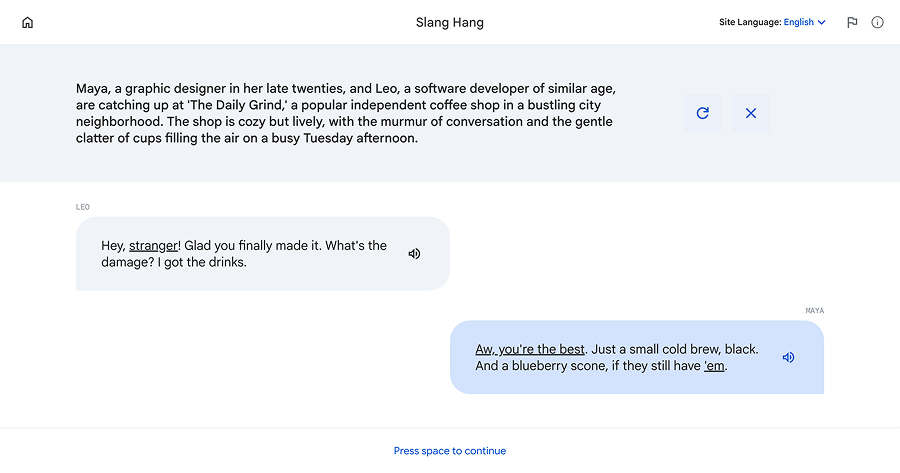
After clicking the Generate button, Slang Hang will create a short conversation between two people. At the top, you will see a conversation context that explains the situation or setting.
Below that, you will find a dialogue between two speakers. Within the conversation, some expressions may be underlined. These usually include:
- Slang expressions
- Idioms
- Informal phrases
You can hover over these expressions to view their meanings and explanations. This helps you understand how they are used in real-life English conversations.
To learn more effectively with Slang Hang, try reading the conversation out loud. Reading aloud helps you:
- Remember expressions more easily
- Improve your pronunciation
- Practice speaking more naturally
You should also try to imagine the real-life situation in which people might use these expressions. This makes the learning experience more meaningful, practical, and easier to remember.
Word Cam – Learn English Vocabulary Through Your Camera
Step 1: Open Word Cam and Choose Your English Variety
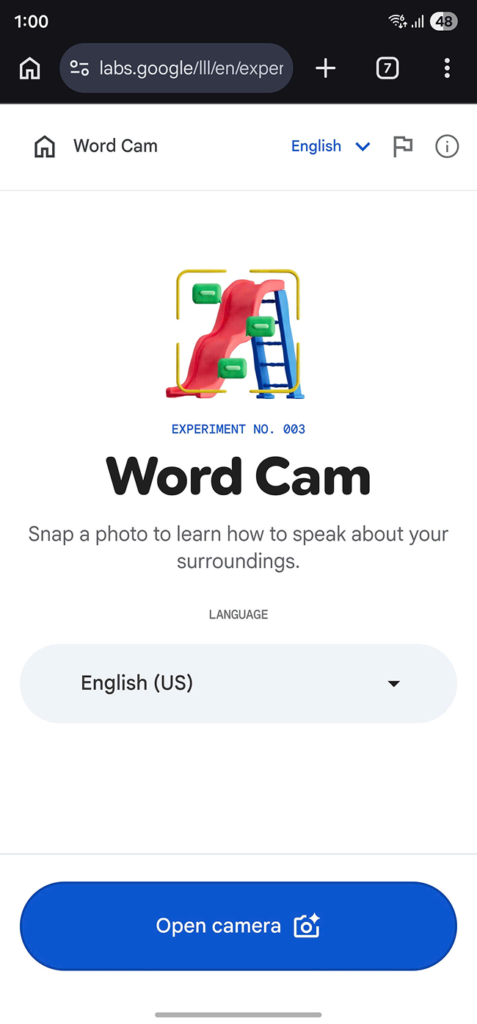
On the Little Language Lessons homepage, click the “Try it” button on the Word Cam card.
You can also access the tool directly using this link: https://labs.google/lll/en/experiments/word-cam
After you open Word Cam, the first step is to choose the variety of English you want to learn: English (AU), English (UK), English (US).
Once you have selected your preferred option, click the Open Camera button to continue.
Step 2: Take a Photo and Explore the Vocabulary
Using your phone or laptop, take a photo of the objects around you. For the best experience, we recommend using your phone, as it makes taking photos quicker and more convenient.
You may also be asked to give Word Cam permission to access your camera. Be sure to allow access so the tool can work properly.
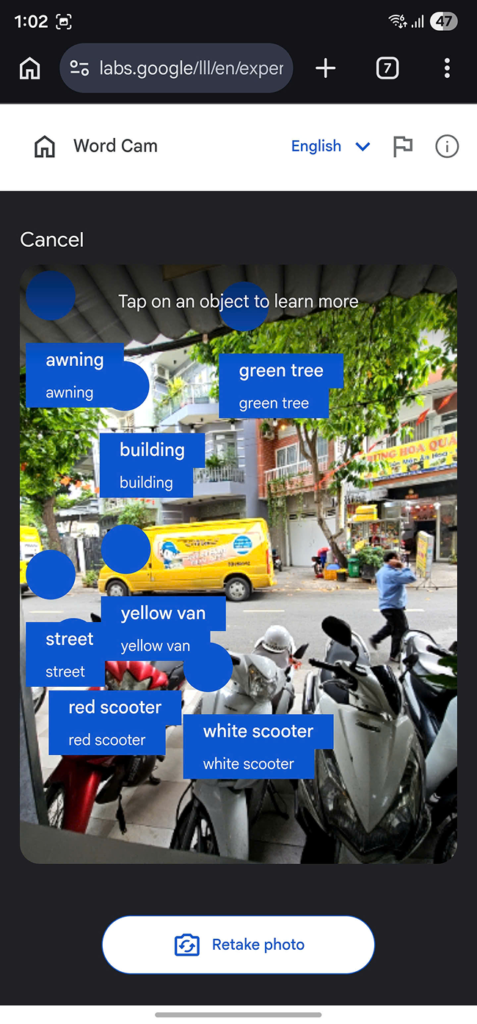
Once the photo is taken, Word Cam will analyze the image and identify the objects in it. After analyzing the image, the tool will display labels for different objects in the picture.
For example, if you take a photo of your desk, the tool might identify:
- Laptop
- Notebook
- Pen
- Coffee mug
This helps you quickly learn English vocabulary related to the objects in your everyday environment.
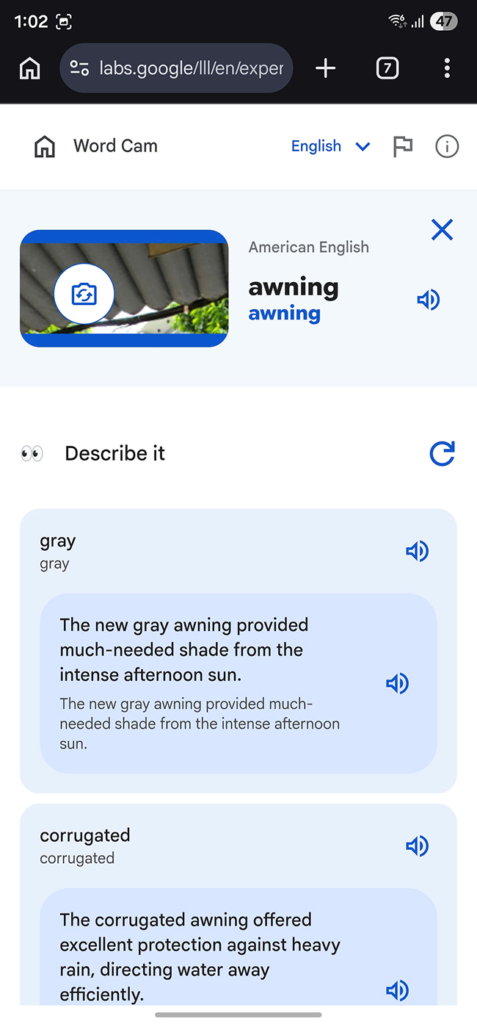
You can also click on any word to explore additional related vocabulary. For example, clicking on the word chair might show related words such as:
- Armchair
- Office chair
- Wooden chair
Each word may also include example sentences that show how the word is used in context. Some words or example sentences include a speaker icon. Click the speaker icon to listen to the pronunciation.
To improve your speaking skills, try practicing shadowing. Shadowing means repeating the word or sentence immediately after hearing it. Practicing this regularly helps improve both your pronunciation and speaking confidence.
Summary
In this part, you have learned how to use the three main tools in Little Language Lessons to practice and improve your English in real-life contexts.
With Tiny Lesson, you can learn useful vocabulary, phrases, and grammar based on specific situations and goals.
With Slang Hang, you can explore natural conversations, idioms, and everyday expressions used by native speakers.
With Word Cam, you can build vocabulary directly from the objects around you and improve your pronunciation through shadowing practice.
By using these tools regularly, you can make your English learning more practical, engaging, and connected to your daily life.
In the next part, we will help you build a simple and effective learning plan using Little Language Lessons so you can practice consistently and turn these tools into a daily English habit.
Read part 1: https://englinker.com/little-language-lessons-guide-part-1
Read part 3: Updating…